

An Illustrated Guide to the Display Text Behaviour
A practical walk-through of GameSalad’s Display Text behaviour and the expression editor.
Every so often questions pop up regarding the Display Text behaviour and the expression editor. I thought I'd take a few minutes to write up a brief guide to some little tips and tricks that might help you use it. Some of these tips are pretty obscure, but you never know who they might help!
Some of the advice in this guide will only apply to Mac OS X, but most should be helpful to all GameSalad users!
Section 1: Using GameSalad’s Display Text Behaviour
This section will deal with the Display Text Behaviour, and the options you'll see on it.
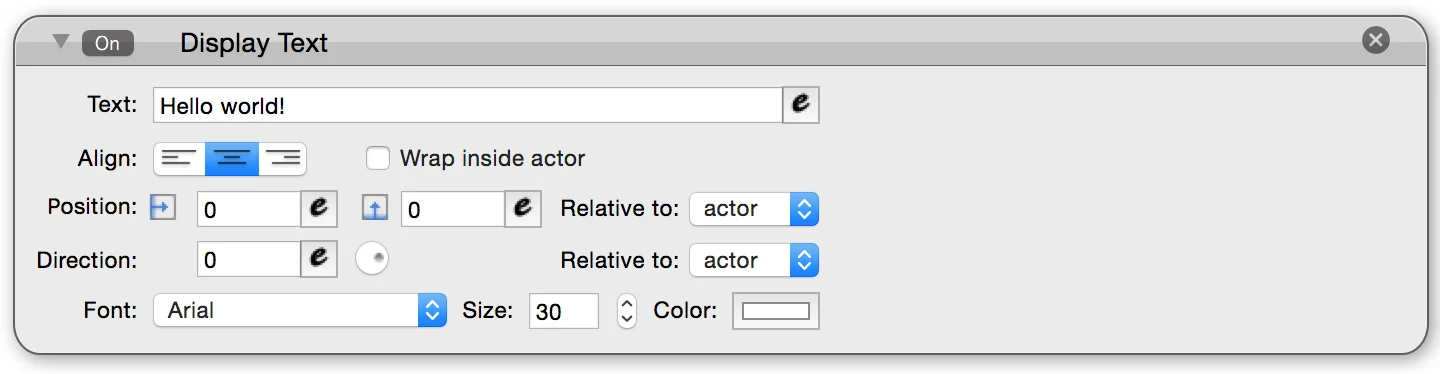
Text Colour
The default text colour for the Display Text behaviour is white. The default colour for a new actor is white. This can cause some confusion - new users will sometimes add a display text and wonder why it’s not showing up. It probably is, the text is just the same colour as the actor! Hopefully we’ll get a default text colour of black soon to avoid this problem.
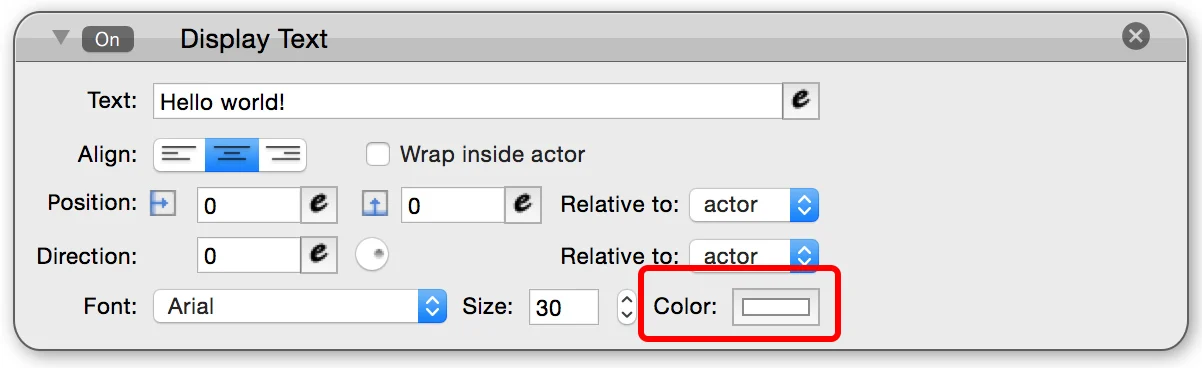
You cannot change the text colour at run-time, so the text will only ever display in the colour you define in the Display Text behaviour.
Wrap Inside Actor
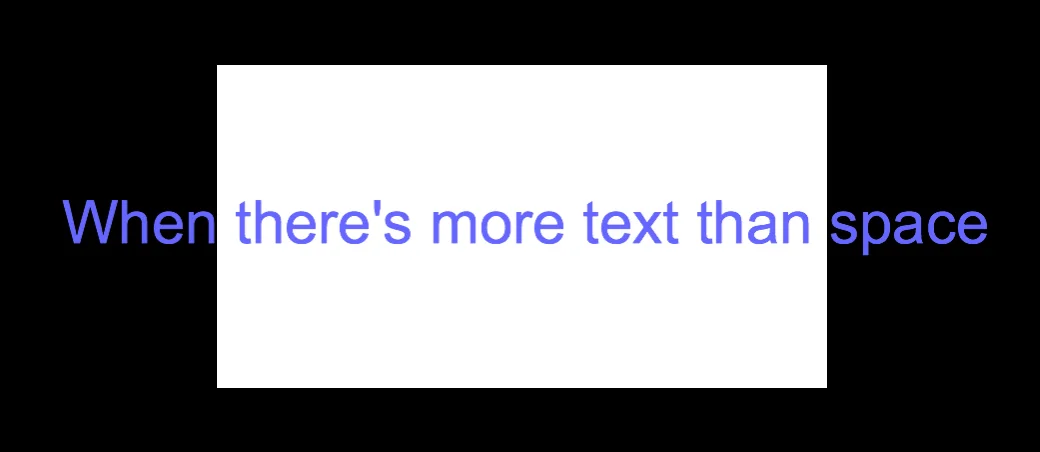
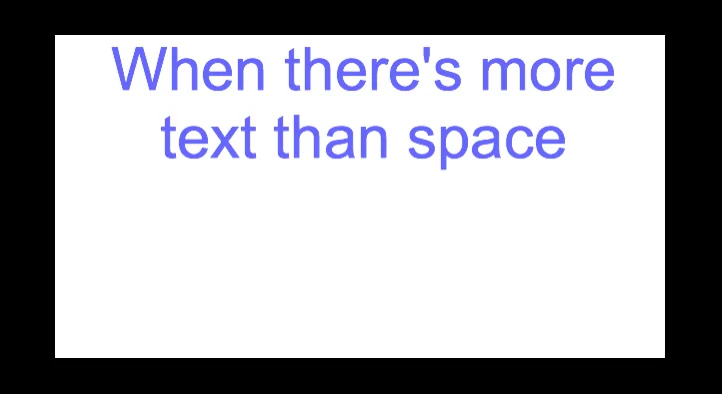
You have two options for how the text you display is formatted. The default behaviour is to display the text centred, both vertically and horizontally. The potential drawback of using this method is that if the text displays larger than the actor, it will overrun the edges of the actor. This can be very helpful, though!
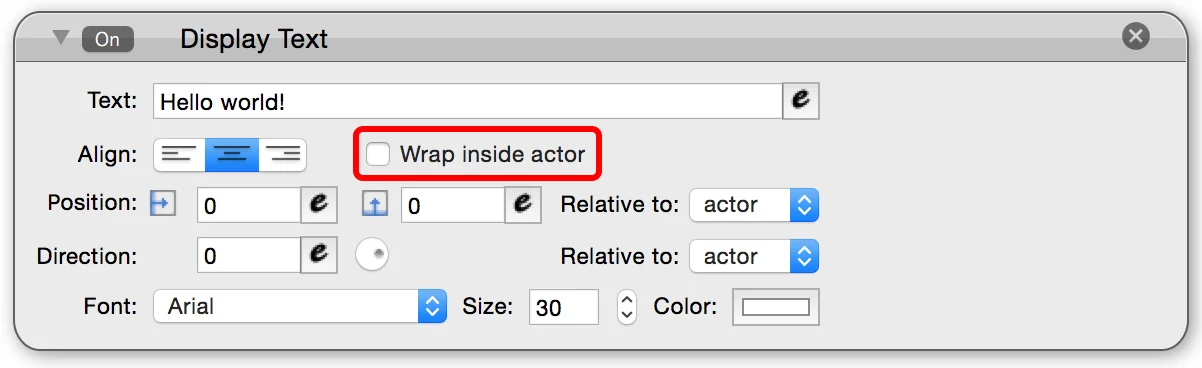
When the “Wrap Inside Actor” checkbox is ticked, the actor’s dimensions define the placement of the text. The text will be displayed within the boundaries of the actor. It will also default to starting at the top of the actor.
"Wrap Inside Actor" unchecked :
"Wrap Inside Actor" checked :
Text Alignment
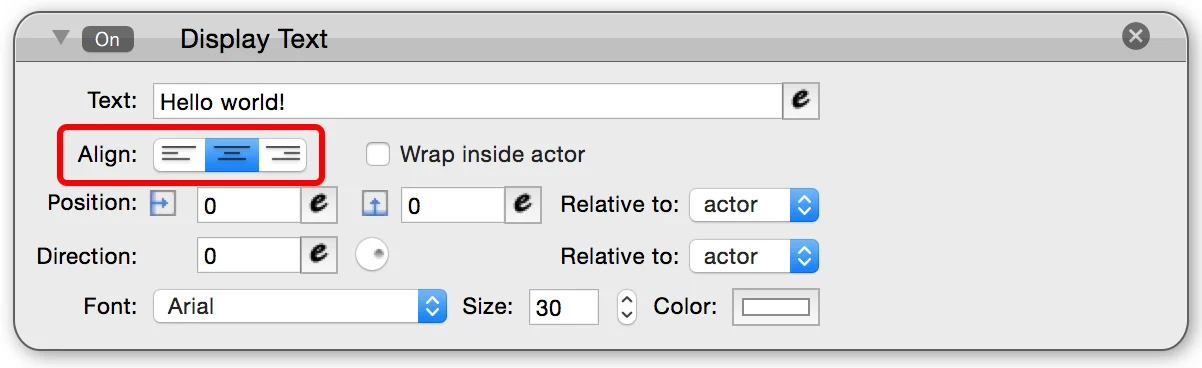
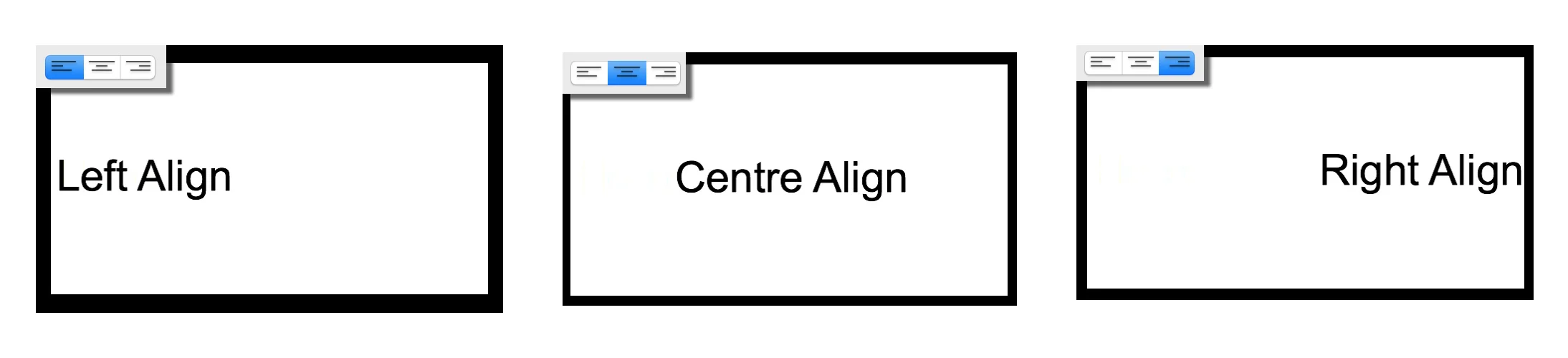
You can control the horizontal alignment of the text by using the three alignment options. These will be familiar to anyone who has used any word processing software in the past. The three options are left-aligned, centre-aligned and right-aligned.
Text Position
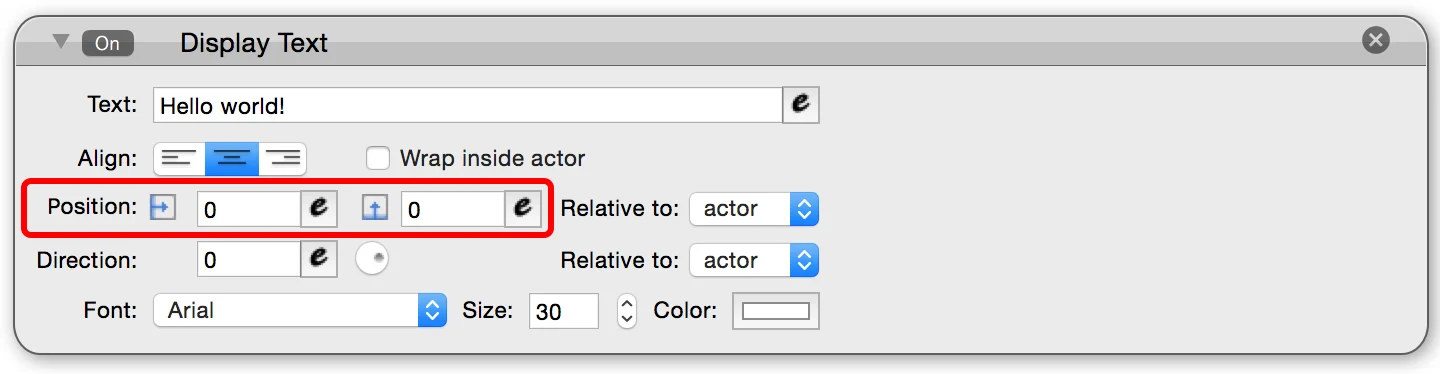
You can specify the position of the text using X and Y co-ordinates. I’m not going to go into this in any detail as this functionality is present in many places in GameSalad and hopefully you’ll be familiar with it. Decimal places are accepted.
One thing to remember is that the alignment of the text does affect how it is displayed. There’s a lot of things to consider here - more combinations than are reasonable to spell out in this tutorial - but have a play around with it and see!
When displaying text, it can be displayed “Relative to: actor” or “Relative to: scene”.
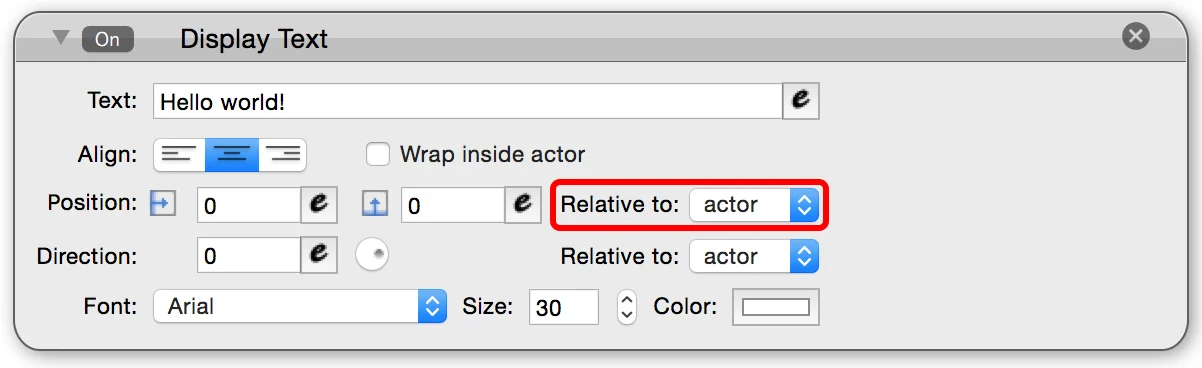
Text displayed “Relative to: actor” will be displayed as the given co-ordinates relative the actor. If you move the actor, the text will move with it. Text displayed “Relative to: scene” will be displayed at the given co-ordinates relative to the scene as a whole. If you move the actor, the text will not move as it’s being displayed at fixed co-ordinates.
"Relative to: actor ":

"Relative to: scene ":

Text Direction
You can use the Direction to specify the rotation of the text, relative to the actor or scene. Any angle between 0 and 360 is accepted. Decimal places can be used.
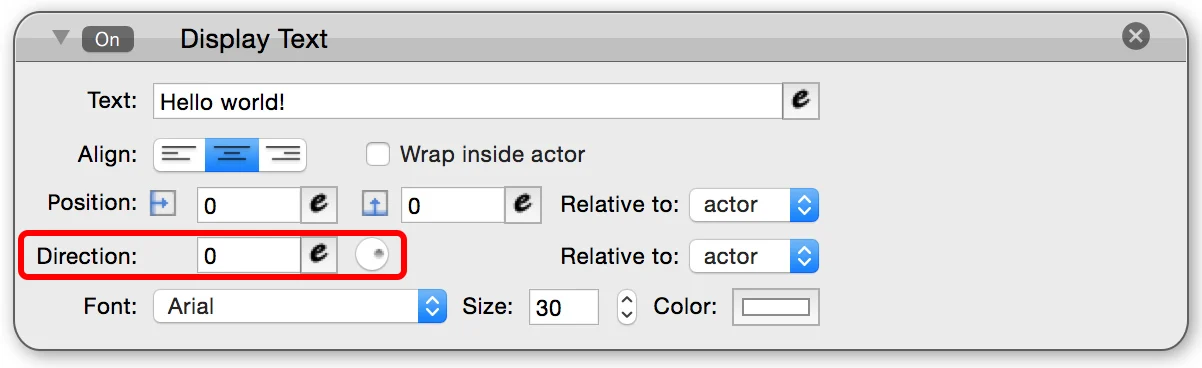

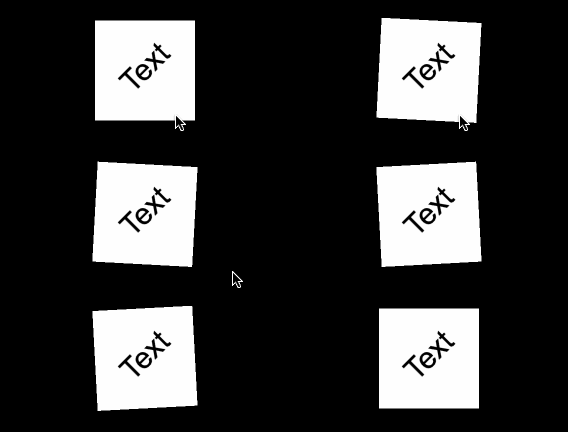
Just like with the text position you can specify if you want the text to be angled relative to the actor or the scene. When angled relative to the actor, if the actor rotates the text will rotate with it. When angled relative to the scene, the text will remain at the same static rotation even if the actor is rotating.
"Relative to: actor ":
"Relative to: scene ":
Text Font
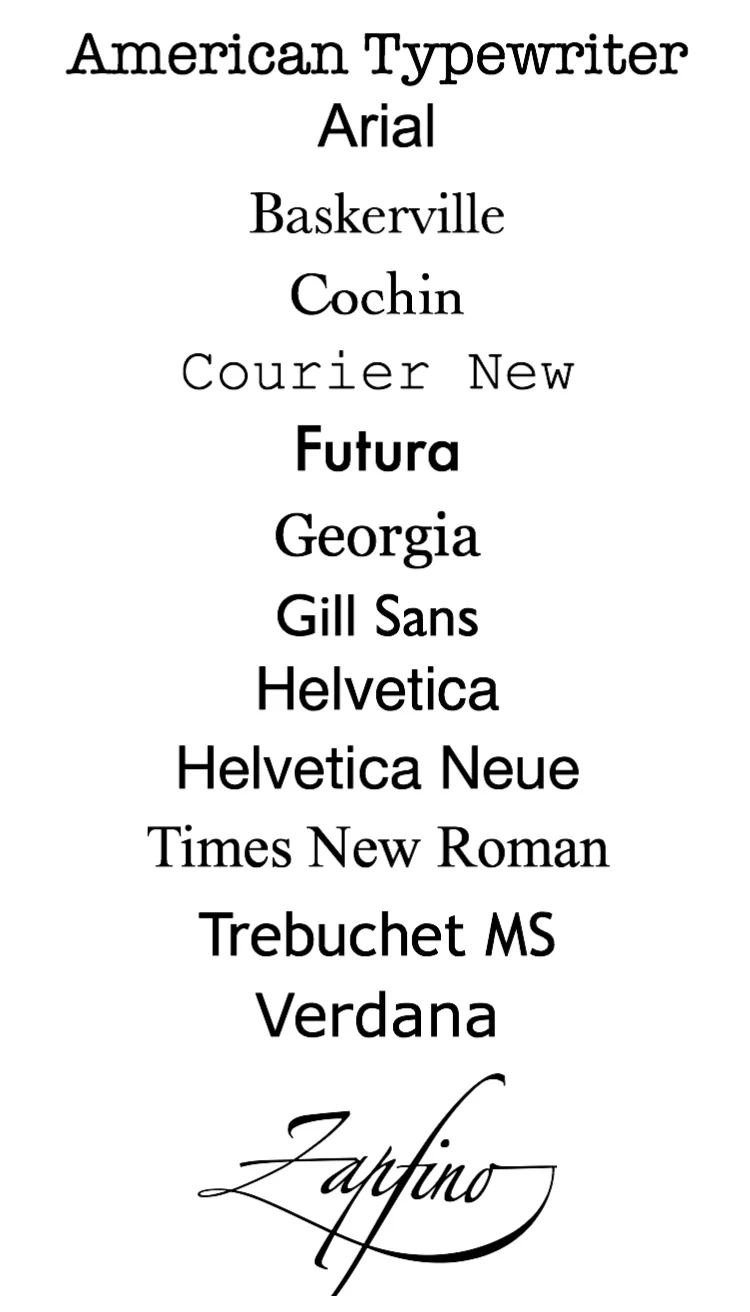
GameSalad has a selection of fonts to choose from. They are demonstrated in the image below. These are the only fonts available to use - new ones cannot be added. We’re hoping for fully custom fonts to be added in the not too distant future!
Text Size
You can display text sized between 0 and 100.
Section 2: Typing Directly Into The Text Box
If you just want to display some text and don't need it to ever change, you may want to type your text directly into the provided box. This is the fastest and easiest way of defining text to display. However, there are still a few things worth knowing!
New Lines

When typing directly into the text box (i.e. not opening the expression editor), you can add new lines by pressing ALT+RETURN . You'll only be able to see one line of text at a time, but you can move the blinking text cursor up and down to see the extra lines.

This will display the following in-game:

Tabs
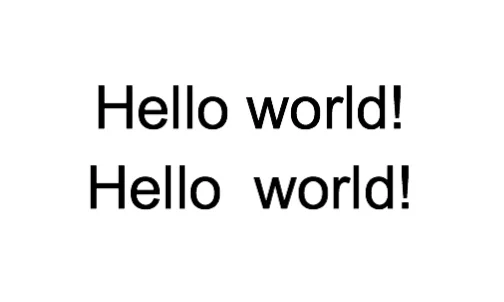
You can add tabs by pressing ALT+TAB . It will look like you've just inputted a space, but when seen in-game, the gap will be a little bigger than a standard space. In the image below, the top text has a space, the bottom text has a tab.
Special Characters
You can input a large number of special characters into your text strings. To access the special characters, look in the Edit menu.
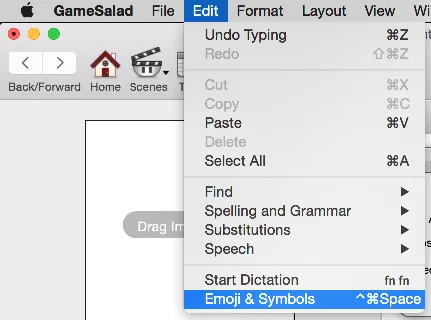
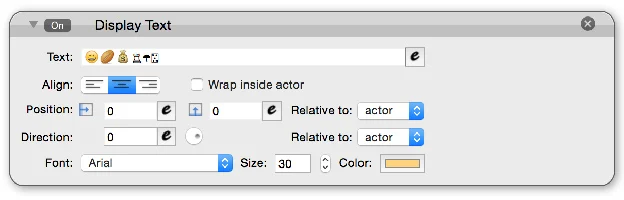
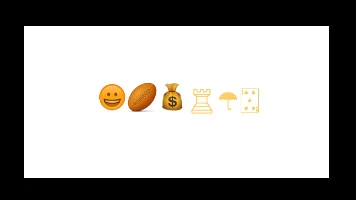
Note that the colour assigned to the text in the display text will be assigned to the characters.
Section 3: Using The Expression Editor

If you open the expression editor and enter your text it becomes a little more confusing, but you get access to more functionality. You can do things like displaying attributes, or performing maths functions. There’s a lot of power available if you know how to use it!
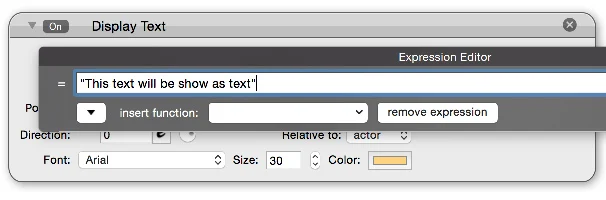
Using Quotations
In order to tell GameSalad that what you’re writing in the expression editor is text, rather than a function of some kind, you need to enclose it in either single ( ‘ ) or double ( “ ) quotation marks.
Spaces
You may have noticed that you can’t press the space bar to input a space when typing in the expression editor. In order to input a space, you need to press ALT-SPACE . This will allow you to add spaces to your text (which will of course be inside quotation marks!)
Line Breaks
If you want to include a line break inside the expression editor, you need to use the escape sequence \n
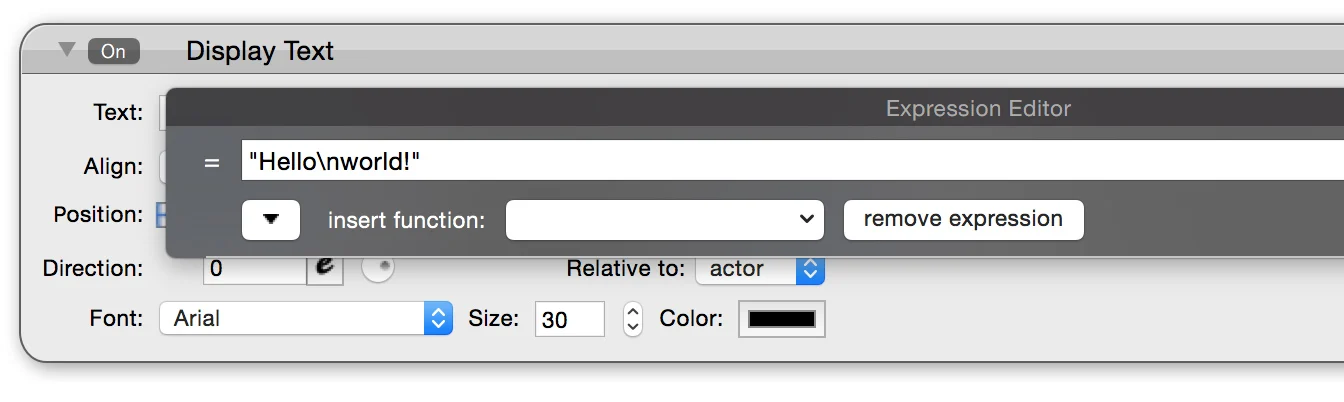
This will place a line break into the text:
Tab
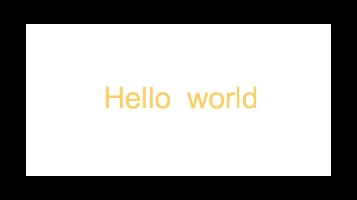
In order to input a tab while using the expression editor, you need to use the escape sequence \t
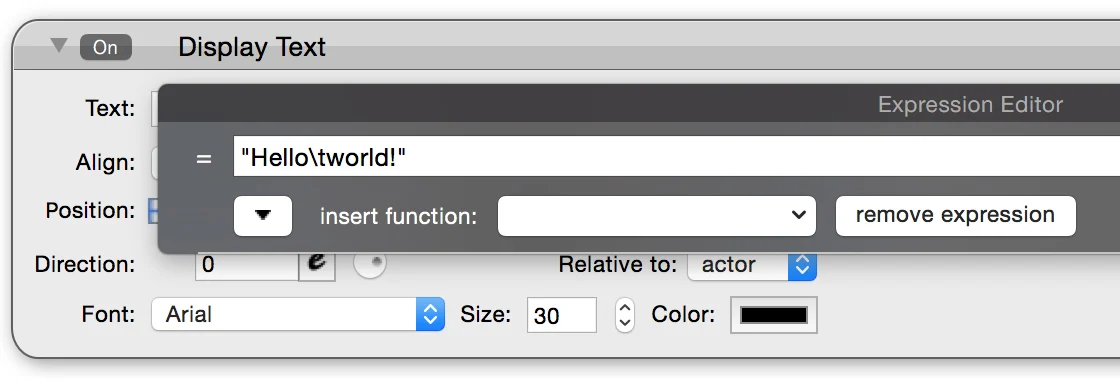
The result of this will be:
Escaping
You may be wondering how you display the text \n in the expression editor. For example, if you’re displaying text explaining the use of the \n escape sequence! Any time you want to display a character the expression editor would read as something other than text, you need to escape it using an additional backslash.
\ = \\
" = \"
' = \'
[ = \[
] = \]
Double Square Brackets
One thing I’ve never seen discussed is the use of double square brackets - [[ ]]
These are deceptively powerful and give you more freedom of control within the expression editor. Anything you put in the expression editor between double square brackets will be displayed exactly as it is - no escaping needed. This includes line breaks with ALT-RETURN and tabs with ALT-TAB .

Try copying and pasting the following text into the expression editor:
[[Sometimes
text “needs” formatting
in ways \n \t you
find [easier] doing in
TextEdit!]]
The result of the above should be this:
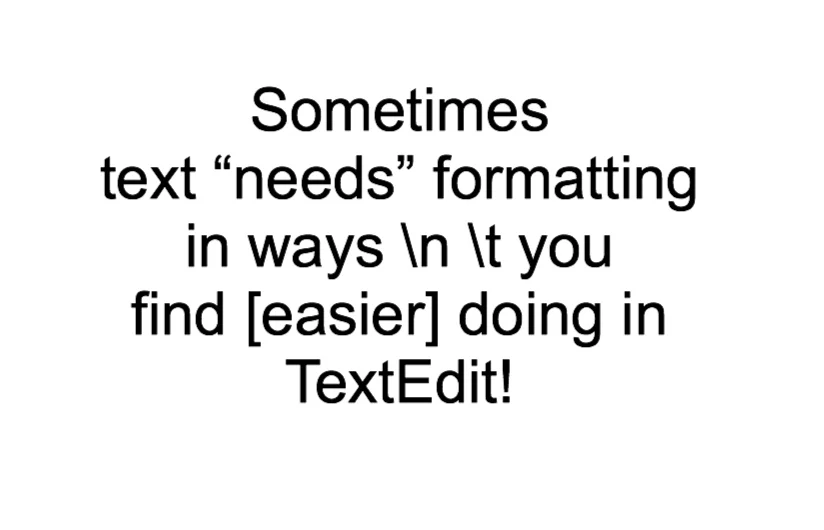
One thing to note is that you need to type the text using ALT-SPACE to input a space - any normal spaces will still be stripped out!
You can also combine these double backers with attributes using the methods described below!
Displaying Attributes
One of the brilliant things about the Display Text behaviour and the expression editor is that it enables you to display attributes. To display an attribute, all you need to do is select it using the expression editor.


If the attribute changes, this change will be reflected in the text displayed.
Concatenation
Another powerful function of the expression editor is the ability to concatenate (combine) two or more strings or numbers. You can combine text, numbers, attributes. One thing you can’t combine, though, is booleans.
In order to concatenate two things, use two periods - ..
Some examples of concatenations and their results are below.
This expression:
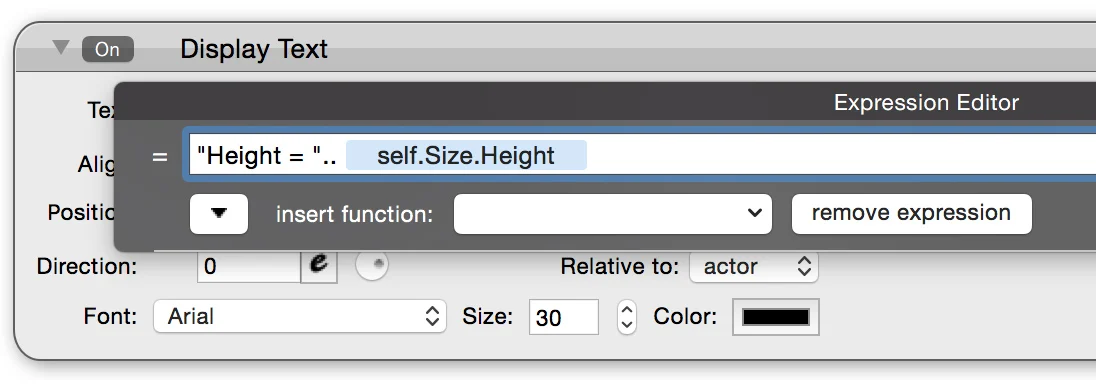
Returns this result:
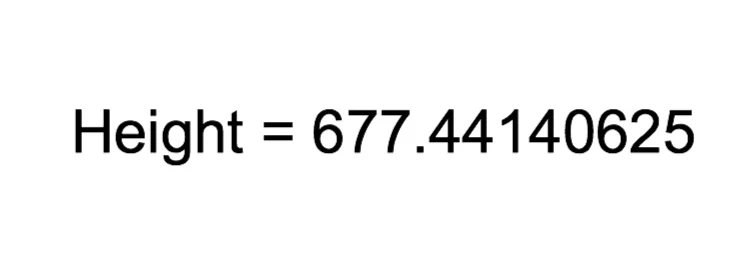
And this expression:
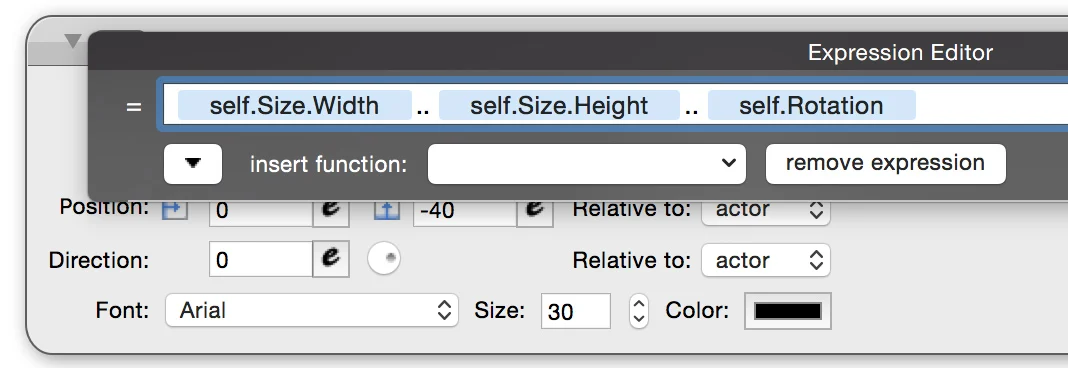
Returns this result:
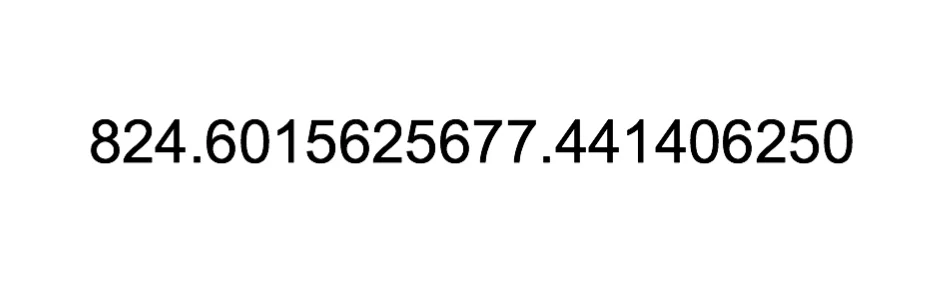
String/number coercion
GameSalad lets you use use strings that are composed of digits and numbers interchangeably. This means if you have, for example, a number that is stored in an attribute, you can add a number stored in a string to it.
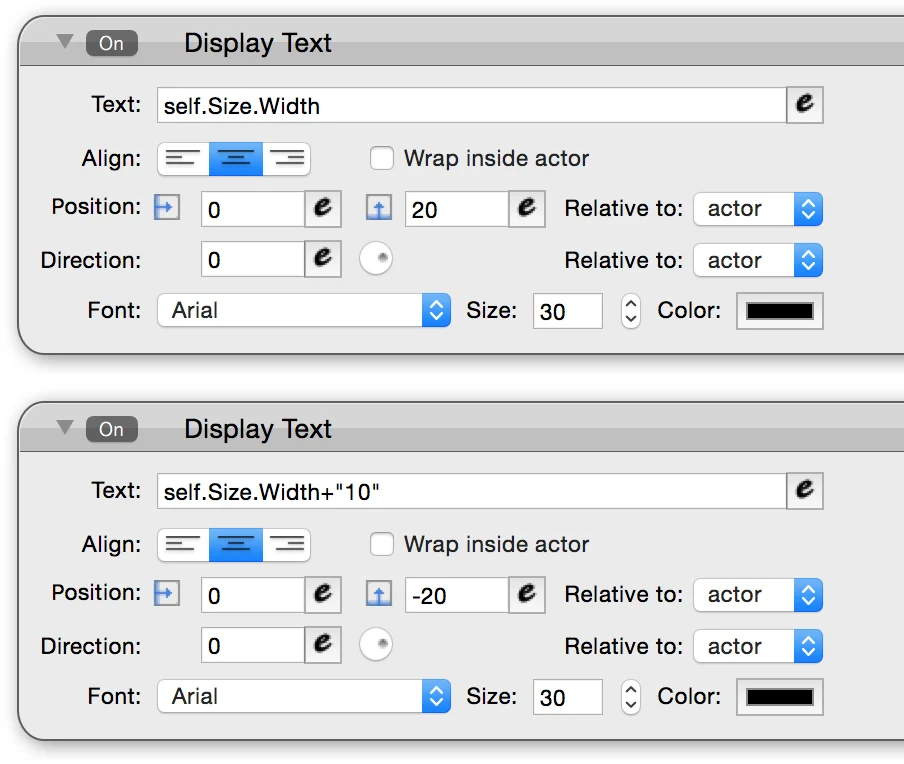
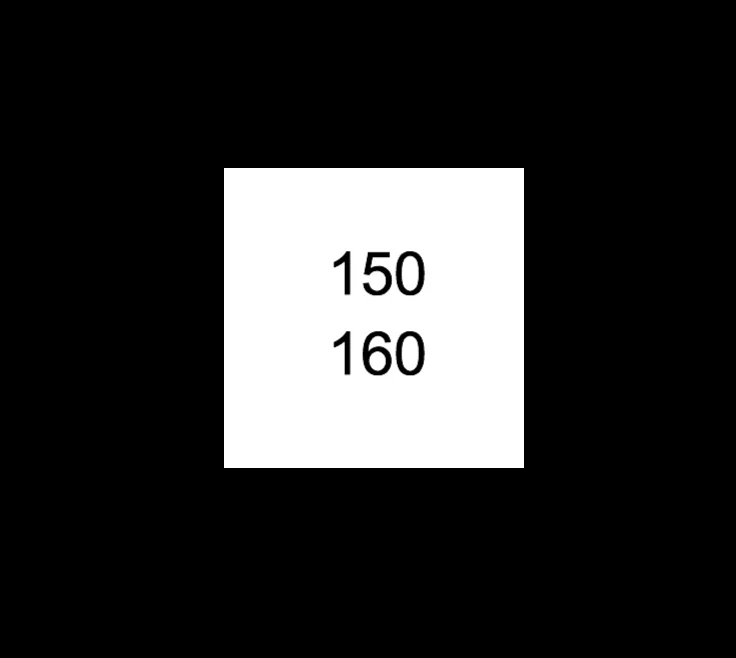
This works both ways - if you store a number in a text attribute, you can still perform maths functions on it.
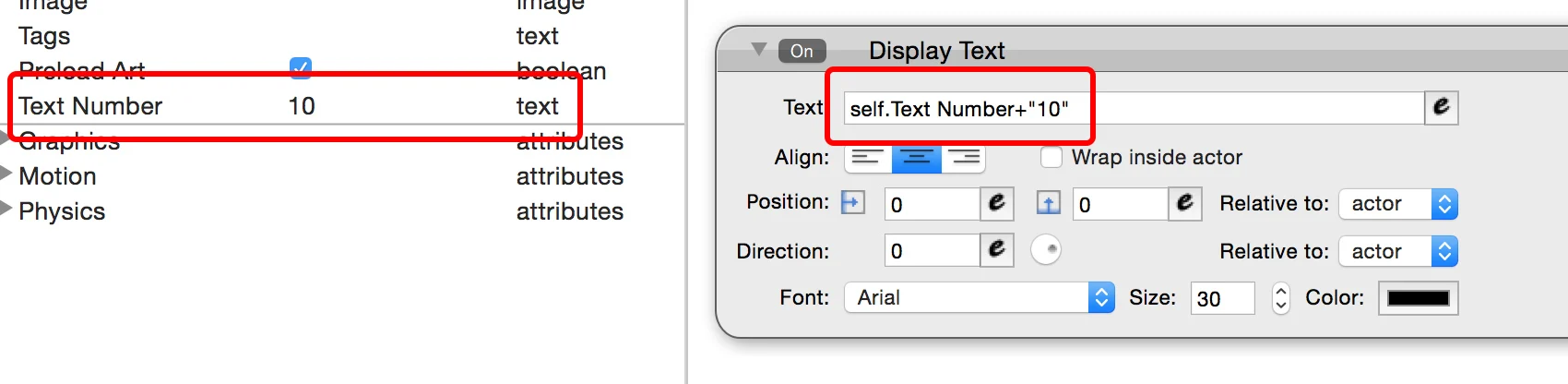
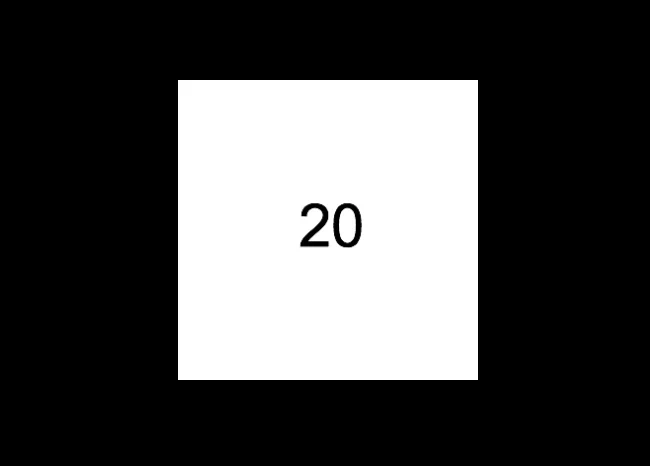
Section 4: Closing Comments
That’s it for now! There are of course a number of useful string functions included in GameSalad which are well worth taking the time to explore as well! For today, though, I’m just focusing on how to display text and some of the little features of the expression editor found in the Display Text Behaviour!